Setup Guide
Setup Proxema in in Minutes.
Follow this step-by-step guide to connect your WordPress site and start managing your store with Proxema. The process takes only a few minutes and requires no technical setup.
Create Your Proxema Account
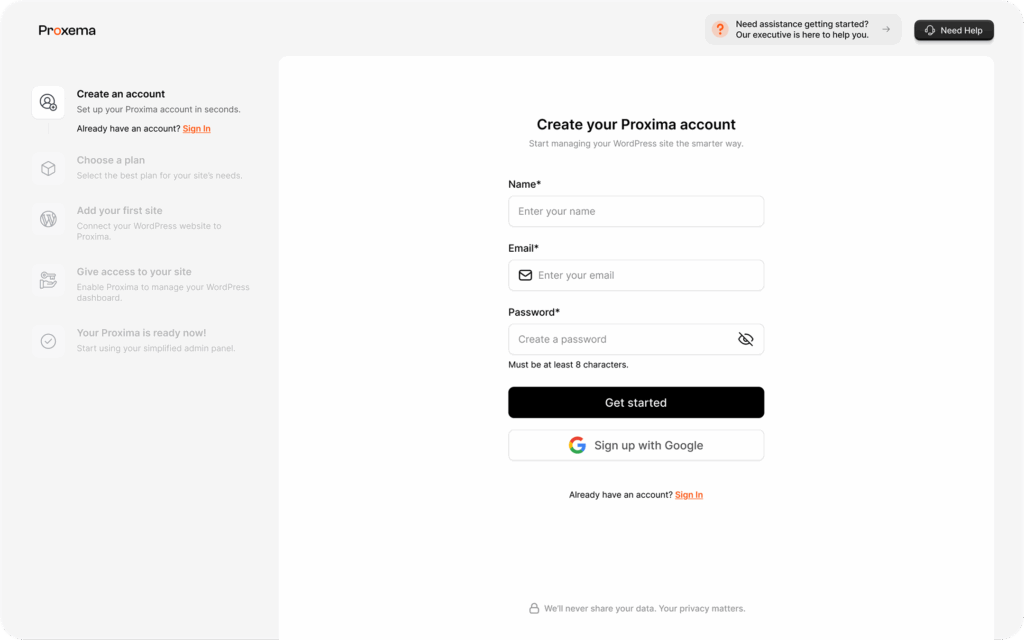
Start by creating your Proxema account. Enter your name, email address, and a secure password, then click Get Started to continue. Once your account is created, Proxema will guide you through the next steps to connect your WordPress site and complete the setup.
If you prefer a faster option, you can also sign up using your Google account, which will automatically create your Proxema account without needing to enter all the details manually.
Use an email address that you regularly access, as important updates about your Proxema account and site connection may be sent there.
Choose Your Plan
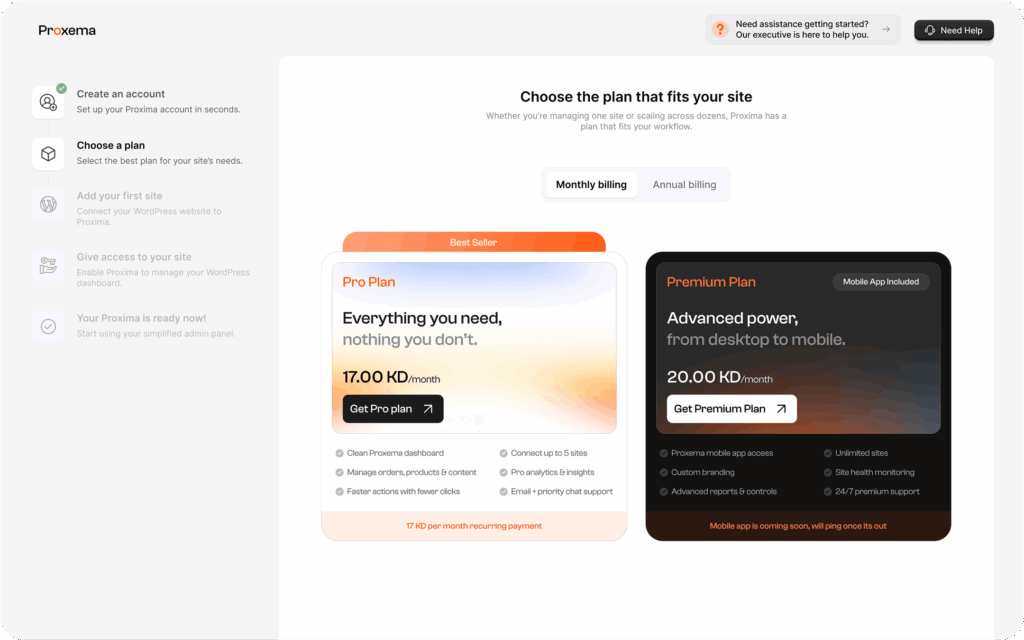
Next, select the Proxema plan that best fits your needs. Each plan includes different features depending on how you want to manage your WordPress site and how many sites you plan to connect.
You can switch between Monthly billing and Annual billing to view the available pricing options. Monthly plans allow flexible payments every month, while annual plans offer better value for long-term use.
Once you decide, click Get Pro Plan or Get Premium Plan. You will then be redirected to the secure payment page, where you can easily complete your purchase using KNET, Tabby, or other available payment options.
Choosing Annual billing can save you more compared to monthly payments, making it a better option if you plan to use Proxema regularly.
Choose How You Want to Set Up Your Site
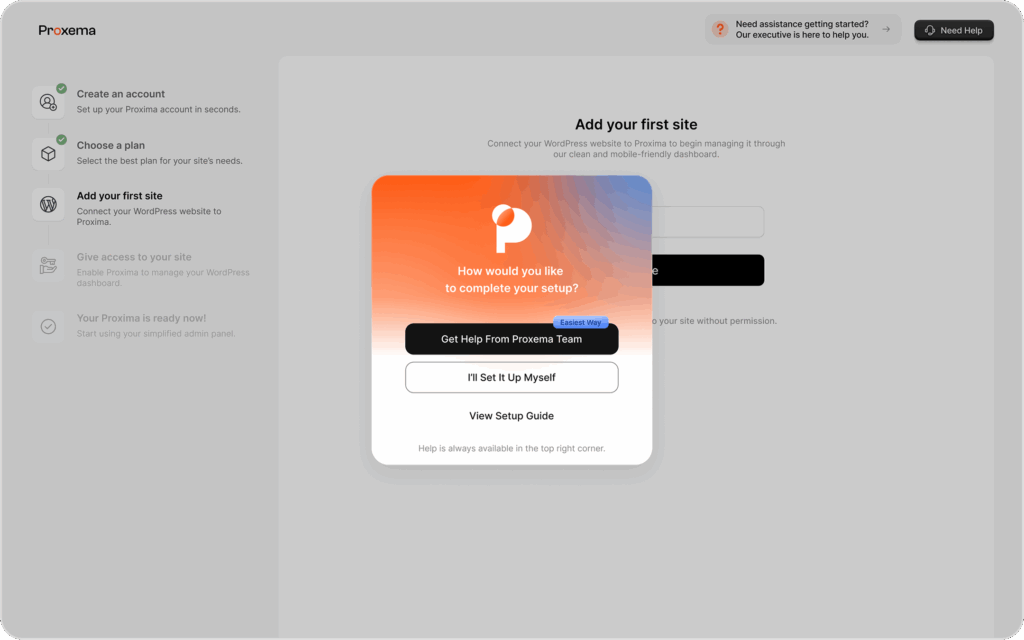
After completing the payment, you will begin the process of adding your first WordPress site to Proxema. At this stage, Proxema gives you two simple options to complete the setup.
If you want the fastest and easiest experience, you can select “Get Help From Proxema Team.” Our team will assist you in connecting your WordPress site and completing the setup for you.
If you prefer to do it yourself, choose “I’ll Set It Up Myself.” Proxema will guide you through the remaining steps to connect your WordPress site securely.
You can also refer to the Setup Guide from here if you want to follow the step-by-step instructions while completing the process.
If you are unsure about any step, choosing Get Help From Proxema Team is the easiest option, and our team will help you get everything ready quickly.
Add Your First WordPress Site
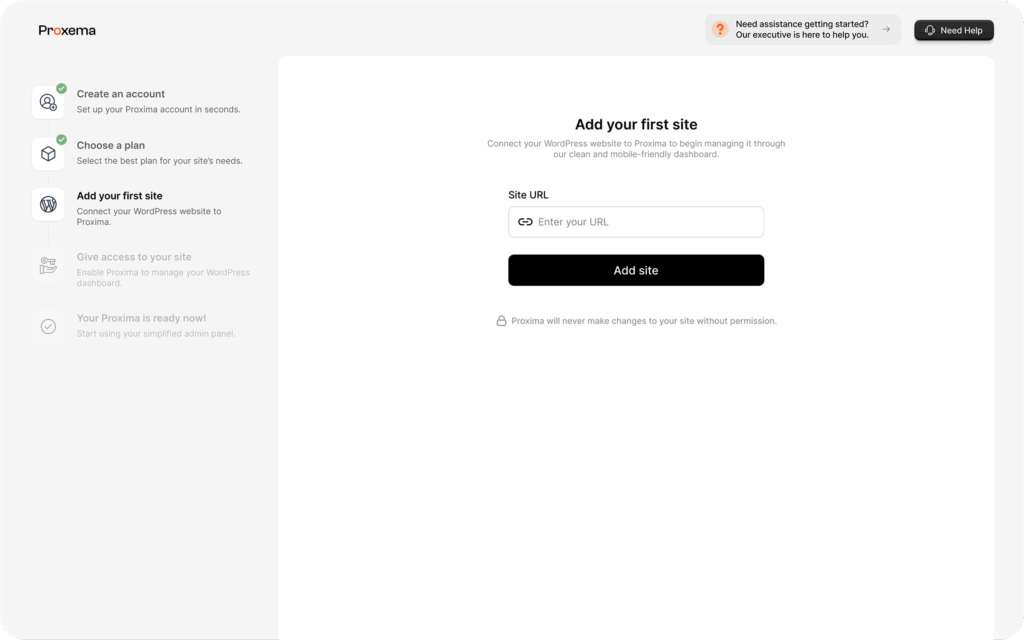
Now it’s time to connect your WordPress website to Proxema. On this screen, simply enter your website URL in the Site URL field and click Add site.
Proxema will use this URL to locate your WordPress installation and prepare the connection. This step tells Proxema which website you want to manage through the dashboard.
Enter your website URL (for example: https://yourwebsite.com). Make sure the site is active and accessible so Proxema can connect to it successfully.
Give Access to Your WordPress Site
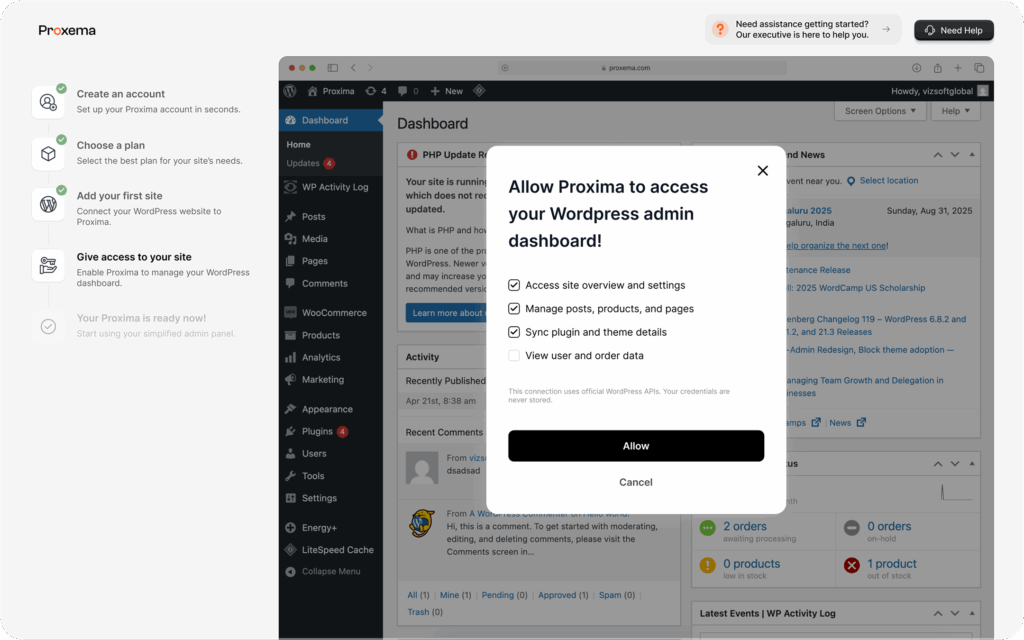
In this step, you will allow Proxema to securely access your WordPress site. This permission is required so Proxema can connect to your website and manage important parts of your store through the Proxema dashboard.
WordPress will ask you to approve the required permissions. These permissions allow Proxema to view and manage products, orders, content, media, and other essential site data so everything works smoothly inside the Proxema interface.
After approving the access, Proxema will automatically complete the connection and prepare your dashboard.
Make sure you approve the permissions using a WordPress administrator account, as lower-level roles may not allow full access for Proxema to manage your site properly.
Your Proxema Is Ready
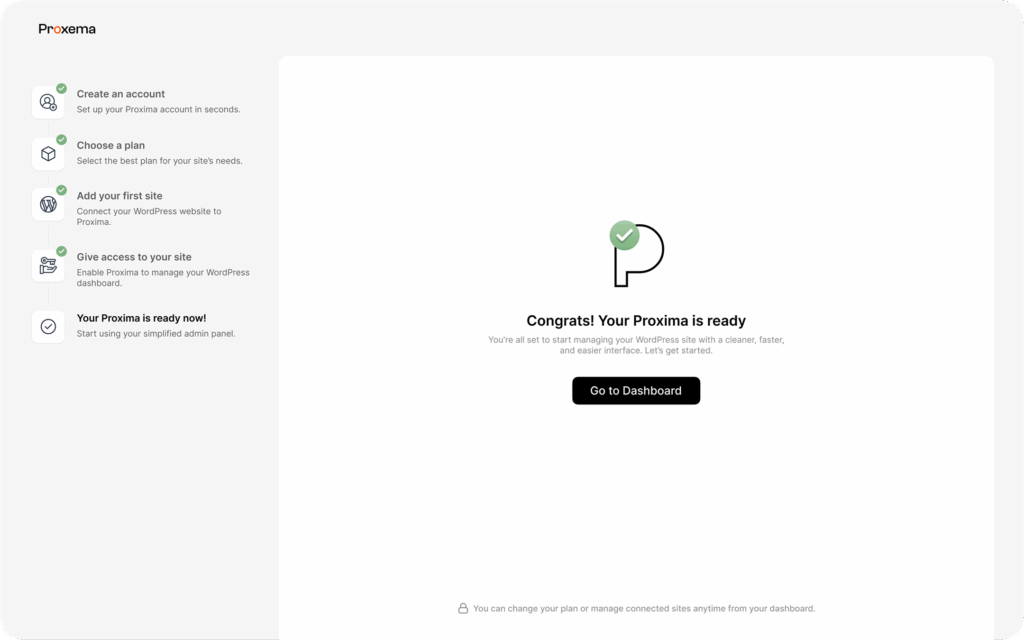
Congratulations! Your website has been successfully connected to Proxema. The setup process is now complete, and your Proxema dashboard is ready to use.
From here, you can open your dashboard and start managing your WordPress site through Proxema’s clean and simplified interface. You will be able to handle things like products, orders, media, and other site content more efficiently.
Simply click Go to Dashboard to start exploring and managing your site with Proxema.
If you ever need assistance, the Proxema support team is always available to help you get the most out of your dashboard.
Need help getting started?
Our team is here to assist you.